Part 1: Common errors and how to fix them
Translation in Progress
This page has not yet been translated into your language. You are viewing the original English content.
Want to help? See our translation guide.
This lesson is a catalogue of the errors you'll meet most often when writing Nextflow workflows. Each entry shows the error in action, the message Nextflow produces, and the fix.
Read it through once to learn the shape of each error, or jump to a specific section when a matching message lands in your terminal.
When you're done here, move on to Part 2: The Nextflow debugging toolkit to learn the tools you reach for when an error isn't obvious from its message alone.
0. Get started
Open the training codespace
If you haven't yet done so, make sure to open the training environment as described in the Environment Setup.

Move into the project directory
Let's move into the directory where the files for this tutorial are located.
You can set VSCode to focus on this directory:
Review the materials
You'll find a set of example workflows with various types of bugs that we'll use for practice:
Directory contents
.
├── bad_bash_var.nf
├── bad_channel_shape.nf
├── bad_channel_shape_viewed_debug.nf
├── bad_channel_shape_viewed.nf
├── bad_number_inputs.nf
├── badpractice_syntax.nf
├── bad_resources.nf
├── bad_syntax.nf
├── buggy_workflow.nf
├── data
│   ├── sample_001.fastq.gz
│   ├── sample_002.fastq.gz
│   ├── sample_003.fastq.gz
│   ├── sample_004.fastq.gz
│   ├── sample_005.fastq.gz
│   └── sample_data.csv
├── exhausted.nf
├── invalid_process.nf
├── missing_output.nf
├── missing_software.nf
├── missing_software_with_stub.nf
├── nextflow.config
├── no_such_var.nf
└── sample_processing.nf
These files represent common debugging scenarios you'll encounter in real-world development.
Review the assignment
Your challenge is to run each workflow, identify the error(s), and fix them.
For each buggy workflow:
- Run the workflow and observe the error
- Analyze the error message: what is Nextflow telling you?
- Locate the problem in the code using the clues provided
- Fix the bug and verify your solution works
- Reset the file before moving to the next section (use
git checkout <filename>)
The exercises progress from simple syntax errors to more subtle runtime issues. Solutions are discussed inline, but try to solve each one yourself before reading ahead.
Readiness checklist
Think you're ready to dive in?
- My codespace is up and running
- I've set my working directory appropriately
- I understand the assignment
If you can check all the boxes, you're good to go.
1. Syntax Errors
Syntax errors are the most common type of error you'll encounter when writing Nextflow code. They occur when the code does not conform to the expected syntax rules of the Nextflow DSL. These errors prevent your workflow from running at all, so it's important to learn how to identify and fix them quickly.
1.1. Missing braces
One of the most common syntax errors, and sometimes one of the more complex ones to debug is missing or mismatched brackets.
Let's start with a practical example.
Run the pipeline
Command output
Key elements of syntax error messages:
- File and location: Shows which file and line/column contain the error (
bad_syntax.nf:24:1) - Error description: Explains what the parser found that it didn't expect (
Unexpected input: '<EOF>') - EOF indicator: The
<EOF>(End Of File) message indicates the parser reached the end of the file while still expecting more content - a classic sign of unclosed braces
Check the code
Now, let's examine bad_syntax.nf to understand what's causing the error:
For the purpose of this example we've left a comment for you to show where the error is. The Nextflow VSCode extension should also be giving you some hints about what might be wrong, putting the mismatched brace in red and highlighting the premature end of the file:
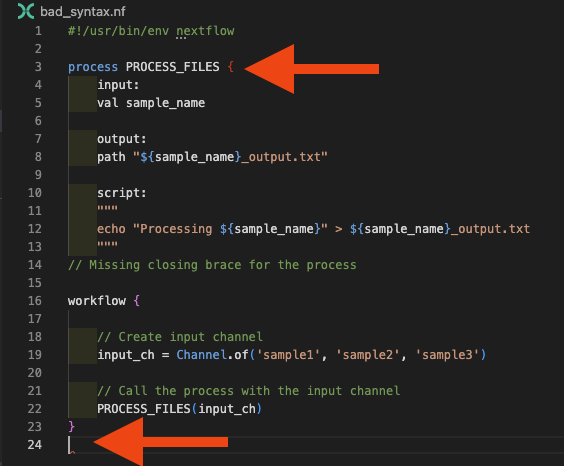
Debugging strategy for bracket errors:
- Use VS Code's bracket matching (place cursor next to a bracket)
- Check the Problems panel for bracket-related messages
- Ensure each opening
{has a corresponding closing}
Fix the code
Replace the comment with the missing closing brace:
Run the pipeline
Now run the workflow again to confirm it works:
Command output
1.2. Using incorrect process keywords or directives
Another common syntax error is an invalid process definition. This can happen if you forget to define required blocks or use incorrect directives in the process definition.
Run the pipeline
Command output
N E X T F L O W   ~  version 25.10.4

Launching `invalid_process.nf` [nasty_jepsen] DSL2 - revision: da9758d614

Error invalid_process.nf:3:1: Invalid process definition -- check for missing or out-of-order section labels
│   3 | process PROCESS_FILES {
│     | ^^^^^^^^^^^^^^^^^^^^^^^
│   4 |     inputs:
│   5 |     val sample_name
│   6 |
╰   7 |     output:

ERROR ~ Script compilation failed

 -- Check '.nextflow.log' file for details
Check the code
The error indicates an "Invalid process definition" and shows the context around the problem. Looking at lines 3-7, we can see inputs: on line 4, which is the issue. Let's examine invalid_process.nf:
Looking at line 4 in the error context, we can spot the issue: we're using inputs instead of the correct input directive. The Nextflow VSCode extension will also flag this:
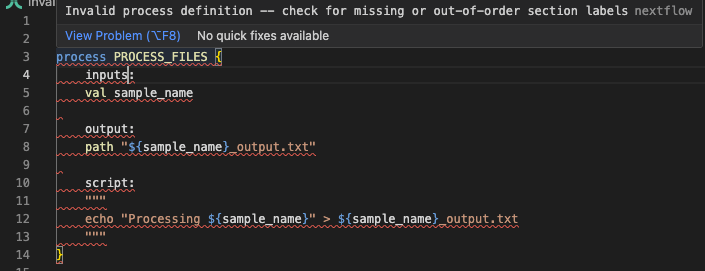
Fix the code
Replace the incorrect keyword with the correct one by referencing the documentation:
Run the pipeline
Now run the workflow again to confirm it works:
Command output
1.3. Using bad variable names
The variable names you use in your script blocks must be valid, derived either from inputs or from groovy code inserted before the script. But when you're wrangling complexity at the start of pipeline development, it's easy to make mistakes in variable naming, and Nextflow will let you know quickly.
Run the pipeline
Command output
N E X T F L O W   ~  version 25.10.4

Launching `no_such_var.nf` [gloomy_meninsky] DSL2 - revision: 0c4d3bc28c

Error no_such_var.nf:17:39: `undefined_var` is not defined
│  17 |     echo "Using undefined variable: ${undefined_var}" >> ${output_pref
╰     |                                       ^^^^^^^^^^^^^

ERROR ~ Script compilation failed

 -- Check '.nextflow.log' file for details
The error is caught at compile time and points directly to the undefined variable on line 17, with a caret indicating exactly where the problem is.
Check the code
Let's examine no_such_var.nf:
The error message indicates that the variable is not recognized in the script template, and there you go- you should be able to see ${undefined_var} used in the script block, but not defined elsewhere.
Fix the code
If you get a 'No such variable' error, you can fix it by either defining the variable (by correcting input variable names or editing groovy code before the script), or by removing it from the script block if it's not needed:
Run the pipeline
Now run the workflow again to confirm it works:
Command output
1.4. Bad use of Bash variables
Starting out in Nextflow, it can be difficult to understand the difference between Nextflow (Groovy) and Bash variables. This can generate another form of the bad variable error that appears when trying to use variables in the Bash content of the script block.
Run the pipeline
Command output
N E X T F L O W   ~  version 25.10.4

Launching `bad_bash_var.nf` [infallible_mandelbrot] DSL2 - revision: 0853c11080

Error bad_bash_var.nf:13:42: `prefix` is not defined
│  13 |     echo "Processing ${sample_name}" > ${prefix}.txt
╰     |                                          ^^^^^^

ERROR ~ Script compilation failed

 -- Check '.nextflow.log' file for details
Check the code
The error points to line 13 where ${prefix} is used. Let's examine bad_bash_var.nf to see what's causing the issue:
| bad_bash_var.nf | |
|---|---|
In this example, we're defining the prefix variable in Bash, but in a Nextflow process the $ syntax we used to refer to it (${prefix}) is interpreted as a Groovy variable, not Bash. The variable doesn't exist in the Groovy context, so we get a 'no such variable' error.
Fix the code
If you want to use a Bash variable, you must escape the dollar sign like this:
| bad_bash_var.nf | |
|---|---|
This tells Nextflow to interpret this as a Bash variable.
Run the pipeline
Now run the workflow again to confirm it works:
Command output
Groovy vs Bash Variables
For simple variable manipulations like string concatenation or prefix/suffix operations, it's usually more readable to use Groovy variables in the script section rather than Bash variables in the script block:
This approach avoids the need to escape dollar signs and makes the code easier to read and maintain.
1.5. Statements Outside Workflow Block
The Nextflow VSCode extension highlights issues with code structure that will cause errors. A common example is defining channels outside of the workflow {} block - this is now enforced as a syntax error.
Run the pipeline
Command output
N E X T F L O W   ~  version 25.10.4

Launching `badpractice_syntax.nf` [intergalactic_colden] DSL2 - revision: 5e4b291bde

Error badpractice_syntax.nf:3:1: Statements cannot be mixed with script declarations -- move statements into a process or workflow
│   3 | input_ch = channel.of('sample1', 'sample2', 'sample3')
╰     | ^^^^^^^^^^^^^^^^^^^^^^^^^^^^^^^^^^^^^^^^^^^^^^^^^^^^^^

ERROR ~ Script compilation failed

 -- Check '.nextflow.log' file for details
The error message clearly indicates the problem: statements (like channel definitions) cannot be mixed with script declarations outside of a workflow or process block.
Check the code
Let's examine badpractice_syntax.nf to see what's causing the error:
The VSCode extension will also highlight the input_ch variable as being defined outside the workflow block:
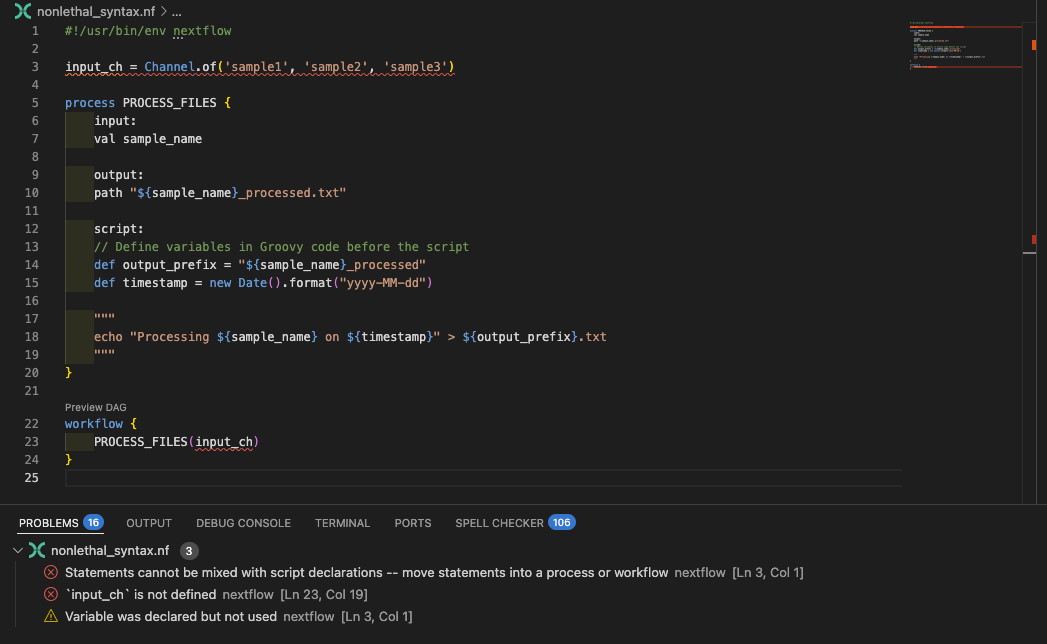
Fix the code
Move the channel definition inside the workflow block:
Run the pipeline
Run the workflow again to confirm the fix works:
Command output
Keep your input channels defined within the workflow block, and in general follow any other recommendations the extension makes.
Takeaway
You can systematically identify and fix syntax errors using Nextflow error messages and IDE visual indicators. Common syntax errors include missing braces, incorrect process keywords, undefined variables, and improper use of Bash vs. Nextflow variables. The VSCode extension helps catch many of these before runtime. With these syntax debugging skills in your toolkit, you'll be able to quickly resolve the most common Nextflow syntax errors and move on to tackling more complex runtime issues.
What's next?
Learn to debug more complex channel structure errors that occur even when syntax is correct.
2. Channel Structure Errors
Channel structure errors are more subtle than syntax errors because the code is syntactically correct, but the data shapes don't match what processes expect. Nextflow will try to run the pipeline, but might find that the number of inputs doesn't match what it expects and fail. These errors typically only appear at runtime and require an understanding of the data flowing through your workflow.
Debugging Channels with .view()
Throughout this section, remember that you can use the .view() operator to inspect channel content at any point in your workflow. This is one of the most powerful debugging tools for understanding channel structure issues. We'll explore this technique in detail in section 2.4, but feel free to use it as you work through the examples.
2.1. Wrong Number of Input Channels
This error occurs when you pass a different number of channels than a process expects.
Run the pipeline
Command output
N E X T F L O W   ~  version 25.10.4

Launching `bad_number_inputs.nf` [happy_swartz] DSL2 - revision: d83e58dcd3

Error bad_number_inputs.nf:23:5: Incorrect number of call arguments, expected 1 but received 2
│  23 |     PROCESS_FILES(samples_ch, files_ch)
╰     |     ^^^^^^^^^^^^^^^^^^^^^^^^^^^^^^^^^^^

ERROR ~ Script compilation failed

 -- Check '.nextflow.log' file for details
Check the code
The error message clearly states that the call expected 1 argument but received 2, and points to line 23. Let's examine bad_number_inputs.nf:
You should see the mismatched PROCESS_FILES call, supplying multiple input channels when the process only defines one. The VSCode extension will also under line process call in red, and supply a diagnostic message when you mouse over:
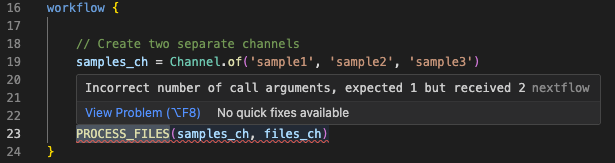
Fix the code
For this specific example, the process expects a single channel and doesn't require the second channel, so we can fix it by passing only the samples_ch channel:
Run the pipeline
Command output
More commonly than this example, you might add additional inputs to a process and forget to update the workflow call accordingly, which can lead to this type of error. Fortunately, this is one of the easier-to-understand and fix errors, as the error message is quite clear about the mismatch.
2.2. Channel Exhaustion (Process Runs Fewer Times Than Expected)
Some channel structure errors are much more subtle and produce no errors at all. Probably the most common of these reflects a challenge that new Nextflow users face in understanding that queue channels can be exhausted and run out of items, meaning the workflow finishes prematurely.
Run the pipeline
Command output
 N E X T F L O W   ~  version 25.10.4

Launching `exhausted.nf` [extravagant_gauss] DSL2 - revision: 08cff7ba2a

executor >  local (1)
[bd/f61fff] PROCESS_FILES (1) [100%] 1 of 1 ✔
This workflow completes without error, but it only processes a single sample!
Check the code
Let's examine exhausted.nf to see if that's right:
The process only runs once instead of three times because the reference_ch channel is a queue channel that gets exhausted after the first process execution. When one channel is exhausted, the entire process stops, even if other channels still have items.
This is a common pattern where you have a single reference file that needs to be reused across multiple samples. The solution is to convert the reference channel to a value channel that can be reused indefinitely.
Fix the code
There are a couple of ways to address this depending on how many files are affected.
Option 1: You have a single reference file that you are re-using a lot. You can simply create a value channel type, which can be used over and over again. There are three ways to do this:
1a Use channel.value():
| exhausted.nf (fixed - Option 1a) | |
|---|---|
1b Use the first() operator:
| exhausted.nf (fixed - Option 1b) | |
|---|---|
1c. Use the collect() operator:
| exhausted.nf (fixed - Option 1c) | |
|---|---|
Option 2: In more complex scenarios, perhaps where you have multiple reference files for all samples in the sample channel, you can use the combine operator to create a new channel that combines the two channels into tuples:
| exhausted.nf (fixed - Option 2) | |
|---|---|
The .combine() operator generates a cartesian product of the two channels, so each item in reference_ch will be paired with each item in input_ch. This allows the process to run for each sample while still using the reference.
This requires the process input to be adjusted. In our example, the start of the process definition would need to be adjusted as follows:
| exhausted.nf (fixed - Option 2) | |
|---|---|
This approach may not be suitable in all situations.
Run the pipeline
Try one of the fixes above and run the workflow again:
Command output
You should now see all three samples being processed instead of just one.
2.3. Wrong Channel Content Structure
When workflows reach a certain level of complexity, it can be a little difficult to keep track of the internal structures of each channel, and people commonly generate mismatches between what the process expects and what the channel actually contains. This is more subtle than the issue we discussed earlier, where the number of channels was incorrect. In this case, you can have the correct number of input channels, but the internal structure of one or more of those channels doesn't match what the process expects.
Run the pipeline
Command output
Launching `bad_channel_shape.nf` [hopeful_pare] DSL2 - revision: ffd66071a1

executor >  local (3)
executor >  local (3)
[3f/c2dcb3] PROCESS_FILES (3) [  0%] 0 of 3 ✘
ERROR ~ Error executing process > 'PROCESS_FILES (1)'

Caused by:
  Missing output file(s) `[sample1, file1.txt]_output.txt` expected by process `PROCESS_FILES (1)`


Command executed:

  echo "Processing [sample1, file1.txt]" > [sample1, file1.txt]_output.txt

Command exit status:
  0

Command output:
  (empty)

Work dir:
  /workspaces/training/side-quests/debugging/work/d6/1fb69d1d93300bbc9d42f1875b981e

Tip: when you have fixed the problem you can continue the execution adding the option `-resume` to the run command line

-- Check '.nextflow.log' file for details
Check the code
The square brackets in the error message provide the clue here - the process is treating the tuple as a single value, which is not what we want. Let's examine bad_channel_shape.nf:
You can see that we're generating a channel composed of tuples: ['sample1', 'file1.txt'], but the process expects a single value, val sample_name. The command executed shows that the process is trying to create a file named [sample3, file3.txt]_output.txt, which is not the intended output.
Fix the code
To fix this, if the process requires both inputs we could adjust the process to accept a tuple:
Run the pipeline
Pick one of the solutions and re-run the workflow:
Command output
2.4. Channel Debugging Techniques
Using .view() for Channel Inspection
The most powerful debugging tool for channels is the .view() operator. With .view(), you can understand the shape of your channels at all stages to help with debugging.
Run the pipeline
Run bad_channel_shape_viewed.nf to see this in action:
Command output
N E X T F L O W   ~  version 25.10.4

Launching `bad_channel_shape_viewed.nf` [maniac_poisson] DSL2 - revision: b4f24dc9da

executor >  local (3)
[c0/db76b3] PROCESS_FILES (3) [100%] 3 of 3 ✔
Channel content: [sample1, file1.txt]
Channel content: [sample2, file2.txt]
Channel content: [sample3, file3.txt]
After mapping: sample1
After mapping: sample2
After mapping: sample3
Check the code
Let's examine bad_channel_shape_viewed.nf to see how .view() is used:
Fix the code
To save you from using .view() operations excessively in future to understand channel content, it's advisable to add some comments to help:
| bad_channel_shape_viewed.nf (with comments) | |
|---|---|
This will become more important as your workflows grow in complexity and channel structure becomes more opaque.
Run the pipeline
Command output
N E X T F L O W   ~  version 25.10.4

Launching `bad_channel_shape_viewed.nf` [marvelous_koch] DSL2 - revision: 03e79cdbad

executor >  local (3)
[ff/d67cec] PROCESS_FILES (2) | 3 of 3 ✔
Channel content: [sample1, file1.txt]
Channel content: [sample2, file2.txt]
Channel content: [sample3, file3.txt]
After mapping: sample1
After mapping: sample2
After mapping: sample3
Takeaway
Many channel structure errors can be created with valid Nextflow syntax. You can debug channel structure errors by understanding data flow, using .view() operators for inspection, and recognizing error message patterns like square brackets indicating unexpected tuple structures.
What's next?
Learn about errors created by process definitions.
3. Process Structure Errors
Most of the errors you encounter related to processes will related to mistakes you have made in forming the command, or to issues related to the underlying software. That said, similarly to the channel issues above, you can make mistakes in the process definition that don't quality as syntax errors, but which will cause errors at run time.
3.1. Missing Output Files
One common error when writing processes is to do something that generates a mismatch between what the process expects and what is generated.
Run the pipeline
Command output
N E X T F L O W   ~  version 25.10.4

Launching `missing_output.nf` [zen_stone] DSL2 - revision: 37ff61f926

executor >  local (3)
executor >  local (3)
[fd/2642e9] process > PROCESS_FILES (2) [ 66%] 2 of 3, failed: 2
ERROR ~ Error executing process > 'PROCESS_FILES (3)'

Caused by:
  Missing output file(s) `sample3.txt` expected by process `PROCESS_FILES (3)`


Command executed:

  echo "Processing sample3" > sample3_output.txt

Command exit status:
  0

Command output:
  (empty)

Work dir:
  /workspaces/training/side-quests/debugging/work/02/9604d49fb8200a74d737c72a6c98ed

Tip: when you have fixed the problem you can continue the execution adding the option `-resume` to the run command line

-- Check '.nextflow.log' file for details
Check the code
The error message indicates that the process expected to produce an output file named sample3.txt, but the script actually creates sample3_output.txt. Let's examine the process definition in missing_output.nf:
| missing_output.nf | |
|---|---|
You should see that there is a mismatch between the output file name in the output: block, and the one used in the script. This mismatch causes the process to fail. If you encounter this sort of error, go back and check that the outputs match between your process definition and your output block.
If the problem still isn't clear, check the work directory itself to identify the actual output files created:
For this example this would highlight to us that a _output suffix is being incorporated into the output file name, contrary to our output: definition.
Fix the code
Fix the mismatch by making the output filename consistent:
Run the pipeline
Command output
3.2. Missing software
Another class of errors occurs due to mistakes in software provisioning. missing_software.nf is a syntactically valid workflow, but it depends on some external software to provide the cowpy command it uses.
Run the pipeline
Command output
ERROR ~ Error executing process > 'PROCESS_FILES (3)'

Caused by:
  Process `PROCESS_FILES (3)` terminated with an error exit status (127)


Command executed:

  cowpy sample3 > sample3_output.txt

Command exit status:
  127

Command output:
  (empty)

Command error:
  .command.sh: line 2: cowpy: command not found

Work dir:
  /workspaces/training/side-quests/debugging/work/82/42a5bfb60c9c6ee63ebdbc2d51aa6e

Tip: you can try to figure out what's wrong by changing to the process work directory and showing the script file named `.command.sh`

-- Check '.nextflow.log' file for details
The process doesn't have access to the command we're specifying. Sometimes this is because a script is present in the workflow bin directory, but has not been made executable. Other times it is because the software is not installed in the container or environment where the workflow is running.
Check the code
Look out for that 127 exit code - it tells you exactly the problem. Let's examine missing_software.nf:
| missing_software.nf | |
|---|---|
Fix the code
We've been a little disingenuous here, and there's actually nothing wrong with the code. We just need to specify the necessary configuration to run the process in such a way that it has access to the command in question. In this case the process has a container definition, so all we need to do is run the workflow with Docker enabled.
Run the pipeline
We've set up a Docker profile for you in nextflow.config, so you can run the workflow with:
Command output
Note
To learn more about how Nextflow uses containers, see Hello Nextflow
3.3. Bad resource configuration
In production usage, you'll be configuring resources on your processes. For example memory defines the maximum amount of memory available to your process, and if the process exceeds that, your scheduler will typically kill the process and return an exit code of 137. We can't demonstrate that here because we're using the local executor, but we can show something similar with time.
Run the pipeline
bad_resources.nf has process configuration with an unrealistic bound on time of 1 millisecond:
Command output
N E X T F L O W   ~  version 25.10.4

Launching `bad_resources.nf` [disturbed_elion] DSL2 - revision: 27d2066e86

executor >  local (3)
[c0/ded8e1] PROCESS_FILES (3) | 0 of 3 ✘
ERROR ~ Error executing process > 'PROCESS_FILES (2)'

Caused by:
  Process exceeded running time limit (1ms)

Command executed:

  cowpy sample2 > sample2_output.txt

Command exit status:
  -

Command output:
  (empty)

Work dir:
  /workspaces/training/side-quests/debugging/work/53/f0a4cc56d6b3dc2a6754ff326f1349

Container:
  community.wave.seqera.io/library/cowpy:1.1.5--3db457ae1977a273

Tip: you can replicate the issue by changing to the process work dir and entering the command `bash .command.run`

 -- Check '.nextflow.log' file for details
Check the code
Let's examine bad_resources.nf:
| bad_resources.nf | |
|---|---|
We know the process will take longer than a second (we've added a sleep in there to make sure), but the process is set to time out after 1 millisecond. Someone has been a little unrealistic with their configuration!
Fix the code
Increase the time limit to a realistic value:
| bad_resources.nf | |
|---|---|
Run the pipeline
Command output
If you make sure to read your error messages failures like this should not puzzle you for too long. But make sure you understand the resource requirements of the commands you are running so that you can configure your resource directives appropriately.
Takeaway
Most process errors are accessible from the error message itself.
Missing output errors point to filename mismatches between output: declarations and what your script actually produces.
Exit code 127 means the command isn't on PATH (almost always a software provisioning problem).
Resource-related kills (commonly exit code 137 for memory, or "exceeded running time limit" for time) are about your configuration, not your code.
What's next?
Move on to Part 2: The Nextflow debugging toolkit to learn the tools you reach for when the error message isn't enough on its own.
Summary
In this lesson, you learned to recognise and fix the most common categories of Nextflow error.
| Category | Hallmark | Where to look |
|---|---|---|
| Missing braces | Unexpected input: '<EOF>' |
The last process or workflow block |
| Bad keyword | Invalid process definition |
The line cited in the error |
| Undefined variable | \name` is not defined` |
The script block or surrounding Groovy |
| Bash vs. Groovy variable | is not defined on a name defined in Bash |
Add \$ to escape Bash variables |
| Statement outside workflow | Statements cannot be mixed with script declarations |
Move into a workflow { } block |
| Wrong channel cardinality | Process requires N channels, M were specified |
The process call site |
| Wrong tuple shape | Output values with stray [ ] brackets, or Path value cannot be null |
The .map { } feeding the process |
| Missing output | Missing output file(s) |
Filename in output: vs. script |
| Missing software | Exit code 127, command not found |
The process container/conda |
| Resource exceeded | Exit code 137, or exceeded running time limit |
Process memory / time directives |
When the error message doesn't pinpoint the problem this clearly, you'll need the tools covered in Part 2.